> ## Documentation Index
> Fetch the complete documentation index at: https://cockroachlabs.mintlify.site/llms.txt
> Use this file to discover all available pages before exploring further.
# Troubleshoot Lock Contention
export const InternalLink = ({version, path = "", children, ...props}) => {
let detectedVersion = version || "stable";
if (typeof window !== 'undefined' && !version) {
const match = window.location.pathname.match(/\/docs\/([^/]+)/);
if (match) {
detectedVersion = match[1];
}
}
const normalizedPath = path.startsWith("/") ? path.slice(1) : path;
return
{children}
;
};
Lock contention is a type of transaction contention that occurs when a transaction is unable to complete due to another concurrent or recent transaction attempting to write to the same data. Lock contention may be the cause of slow SQL query performance.
This tutorial presents:
* How to [understand lock contention](#step-1-understand-lock-contention) by reproducing a basic example.
* How to [identify waiting and blocking transactions](#step-2-identify-waiting-and-blocking-transactions) by using the Insights page of the DB Console.
* Possible ways to [remediate lock contention](#step-3-remediate-lock-contention).
## Before you begin
Download and Install CockroachDB.
The examples in this tutorial will use three terminals, one for each transaction.
### Terminal 1
In the first terminal, use the `cockroach demo` command to start a temporary, in-memory CockroachDB cluster of one node.
```shell theme={"theme":{"light":"catppuccin-mocha","dark":"catppuccin-mocha"}}
cockroach demo --no-example-database
```
It will open an interactive SQL shell to the cluster set to an empty database called `defaultdb`. This database is used for testing and some internal databases.
To distinguish each terminal that you'll use in this tutorial, set the `application_name`:
```sql theme={"theme":{"light":"catppuccin-mocha","dark":"catppuccin-mocha"}}
SET application_name = 'Transaction 1'; -- to distinguish between transactions
```
To connect additional SQL clients to the demo cluster, run:
```sql theme={"theme":{"light":"catppuccin-mocha","dark":"catppuccin-mocha"}}
\demo ls
```
The output will list the connection parameters in the demo cluster:
```
demo@127.0.0.1:26257/defaultdb> \demo ls
node 1:
(webui) http://127.0.0.1:8080/demologin?password=demo28806&username=demo
(cli) cockroach sql --certs-dir=/Users/myuser/.cockroach-demo -u demo -d defaultdb
```
### Terminal 2
In a second terminal, open another SQL shell to the demo cluster using the `cli` command from the `\demo ls` output:
```shell theme={"theme":{"light":"catppuccin-mocha","dark":"catppuccin-mocha"}}
cockroach sql --certs-dir=/Users/myuser/.cockroach-demo -u demo -d defaultdb
```
In the second SQL shell, set `application_name`:
```sql theme={"theme":{"light":"catppuccin-mocha","dark":"catppuccin-mocha"}}
SET application_name = 'Transaction 2'; -- to distinguish between transactions
```
### Terminal 3
In a third terminal, open another SQL shell to the demo cluster using the `cli` command from the `\demo ls` output:
```shell theme={"theme":{"light":"catppuccin-mocha","dark":"catppuccin-mocha"}}
cockroach sql --certs-dir=/Users/myuser/.cockroach-demo -u demo -d defaultdb
```
In the third SQL shell, set `application_name`:
```sql theme={"theme":{"light":"catppuccin-mocha","dark":"catppuccin-mocha"}}
SET application_name = 'Transaction 3'; -- to distinguish between transactions
```
### DB Console
In a web browser, open the DB Console to the demo cluster using the `webui` address from the `\demo ls` output:
```
http://127.0.0.1:8080/demologin?password=demo28806&username=demo
```
## Step 1. Understand lock contention
In this step, you'll load some initial data to prepare the table for a set of transactions that will cause lock contention.
### Initial Data
In any of the SQL shells, create a table and insert some data:
```sql theme={"theme":{"light":"catppuccin-mocha","dark":"catppuccin-mocha"}}
DROP TABLE IF EXISTS t;
CREATE TABLE t (k INT PRIMARY KEY, v INT);
INSERT INTO t VALUES (1,1), (2,2), (3,3);
```
### Example 1
In this example, *Transaction 1* is a write that blocks both *Transaction 2* and *Transaction 3*. *Transaction 2* is a read, and *Transaction 3* is a write. *Transaction 1* locks key `k=2`. When *Transaction 2* tries to read key `k=2`, it experiences lock contention and waits for the lock on the key to be released. Similarly, when *Transaction 3* tries to write to key `k=2`, it experiences lock contention and waits for the lock on the key to be released.
| Transaction 1 (blocking write) | Transaction 2 (waiting read) | Transaction 3 (waiting write) |
| -------------------------------- | -------------------------------- | ----------------------------- |
| `BEGIN;` | | |
| `UPDATE t SET v=2012 WHERE k=2;` | `BEGIN;` | |
| lock k=2 | `SELECT * FROM t WHERE k=2;` | `BEGIN;` |
| waiting | `UPDATE t SET v=2032 WHERE k=2;` | |
| | waiting | |
| `COMMIT;` | unblocked to proceed | unblocked to proceed |
| success, k=2,v=2012 | k=2, v=2012 | |
| `COMMIT;` | `COMMIT;` | |
| success | success | |
| | `SELECT * FROM t WHERE k=2;` | |
| | k=2, v=2032 | |
### SQL statements
To reproduce Example 1 in CockroachDB in preparation for the next section on how to [identify waiting and blocking transactions](#step-2-identify-waiting-and-blocking-transactions), execute the following SQL statements in the given order in the specified terminal.
**Terminal 1**
```sql theme={"theme":{"light":"catppuccin-mocha","dark":"catppuccin-mocha"}}
BEGIN;
UPDATE t SET v=2012 WHERE k=2; -- lock k=2
```
**Terminal 2**
```sql theme={"theme":{"light":"catppuccin-mocha","dark":"catppuccin-mocha"}}
BEGIN;
SELECT * FROM t WHERE k=2; -- waiting read
```
**Terminal 3**
```sql theme={"theme":{"light":"catppuccin-mocha","dark":"catppuccin-mocha"}}
BEGIN;
UPDATE t SET v=2032 WHERE k=2; -- waiting write
```
**Terminal 1**
```sql theme={"theme":{"light":"catppuccin-mocha","dark":"catppuccin-mocha"}}
COMMIT;
```
**Terminal 2**
When *Transaction 1* releases key `k=2`, *Transaction 2* should output the following:
```
k | v
----+-------
2 | 2012
(1 row)
```
`COMMIT` Transaction 2:
```sql theme={"theme":{"light":"catppuccin-mocha","dark":"catppuccin-mocha"}}
COMMIT;
```
**Terminal 3**
`COMMIT` Transaction 3 and verify that the `UPDATE` has succeeded:
```sql theme={"theme":{"light":"catppuccin-mocha","dark":"catppuccin-mocha"}}
COMMIT;
SELECT * FROM t where k=2;
```
The `SELECT` statement should output the following:
```
k | v
----+-------
2 | 2032
(1 row)
```
## Step 2. Identify waiting and blocking transactions
This section of the tutorial uses the **Insights** page of the DB Console to identify waiting and blocked transactions in the demo cluster. With a CockroachDB CockroachDB Cloud cluster, the CockroachDB Cloud Console has a similar **Insights** page. You can also use the `crdb_internal` system catalog to view tables and indexes that experienced contention.
This step assumes you have already run the SQL statements from [Example 1](#example-1). When troubleshooting lock contention in your own workload, you can adapt the following steps using the DB Console or the CockroachDB Cloud Console.
### High Contention Insights
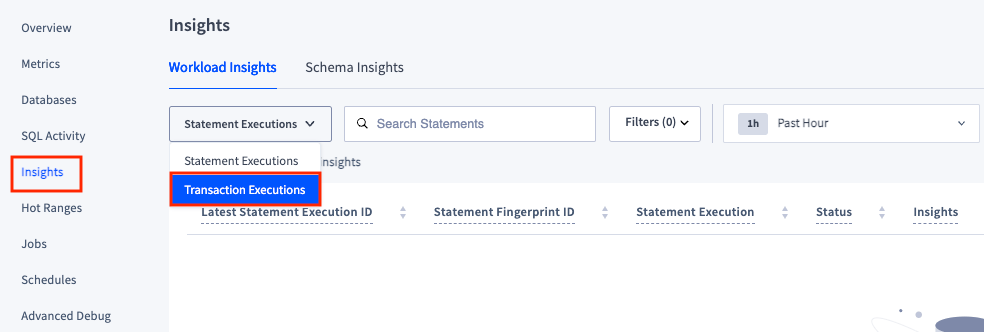
After executing the transactions in the [previous section](#step-1-understand-lock-contention), open the [DB Console](#db-console) for the demo cluster. Navigate to the **Insights** page and select **Workload Insights** > **Transactions Executions**.
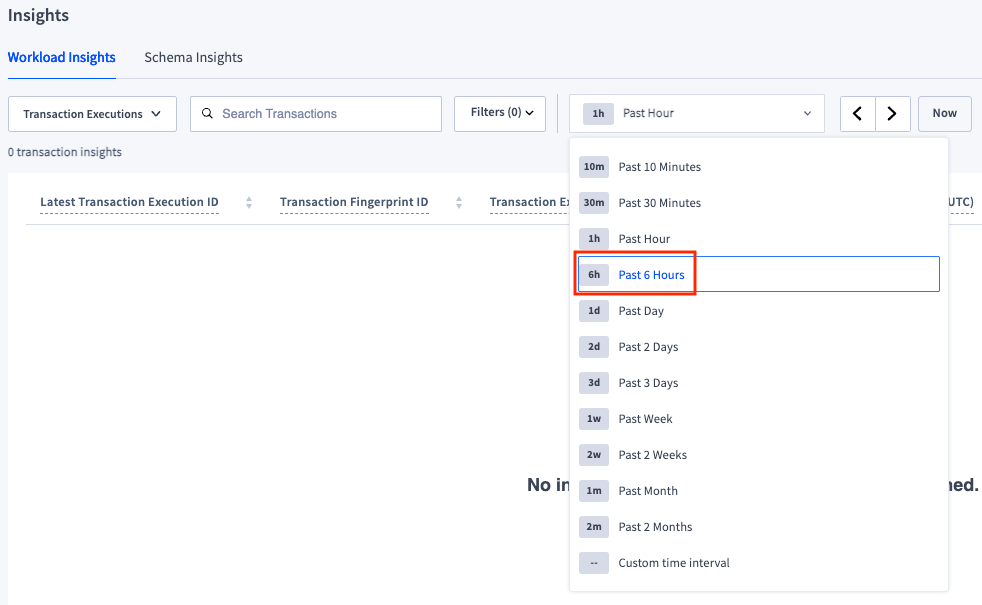
 Depending on when you [executed the transactions](#example-1), to display the transactions flagged with insights, you may have to select a longer time interval, such as **Past 6 Hours**.
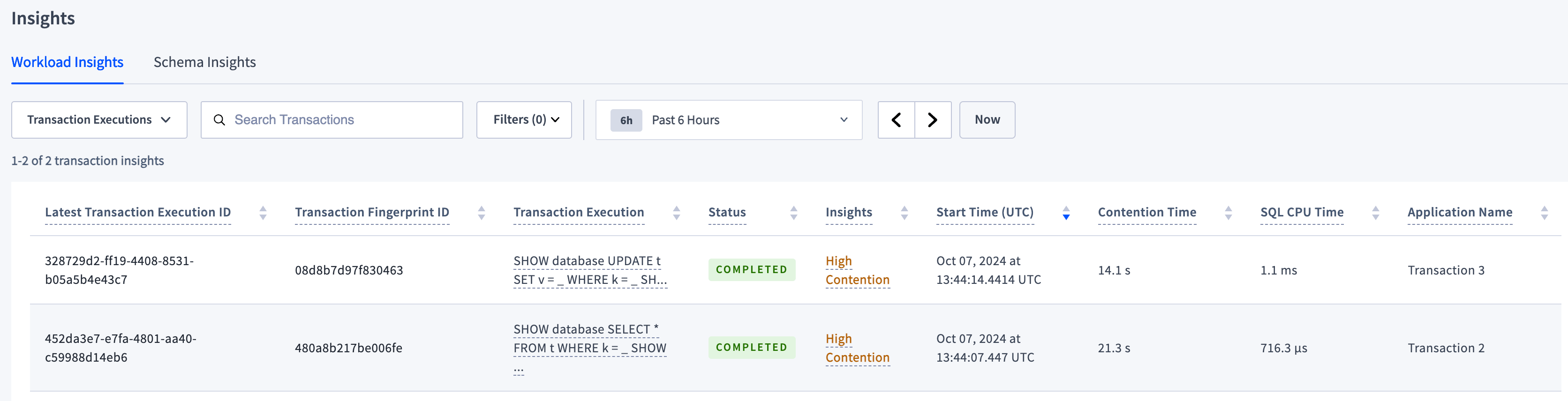
 With an adequate time interval, two **High Contention** insights will be listed for [Example 1](#example-1):
* **Transaction 2**
* **Transaction 3**
With an adequate time interval, two **High Contention** insights will be listed for [Example 1](#example-1):
* **Transaction 2**
* **Transaction 3**
 ### Waiting statement
To identify the exact statement in the transaction that experienced high contention, click the value in the **Latest Transaction Execution ID** column that corresponds to the ID of the latest execution with the given transaction fingerprint.
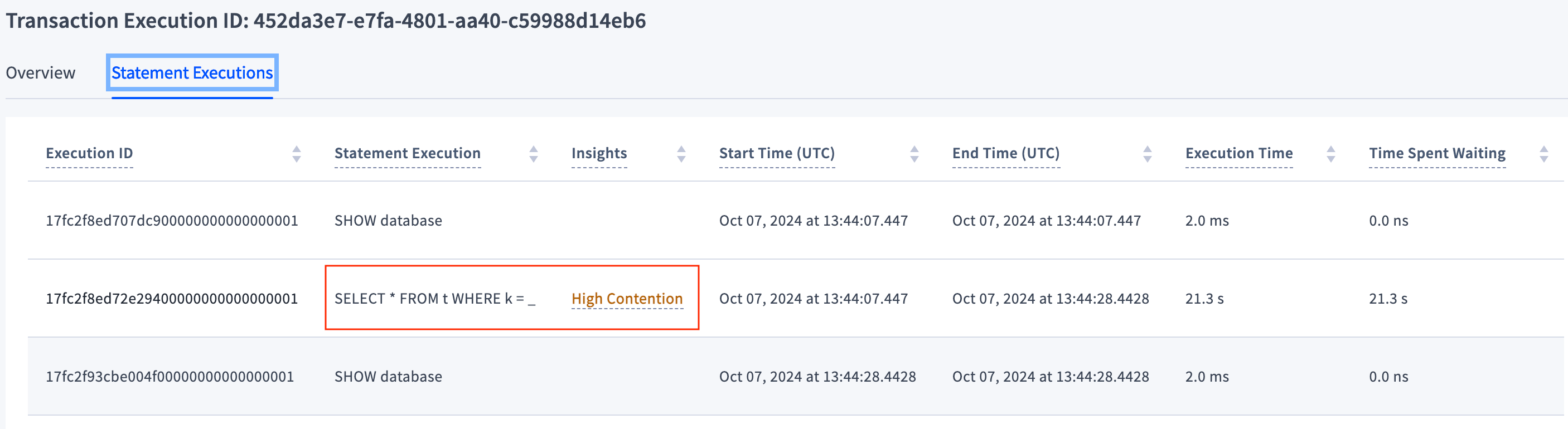
On the **Transaction Execution** page, navigate to the **Statement Executions** tab. In the list of statement executions, in the **Insights** column for `SELECT * FROM t where k = _`, there should be the **High Contention** insight. In [Example 1](#example-1), *Transaction 2* had one statement (other than `SHOW database`). In a transaction with multiple statements, use this page to pinpoint the exact statement that experienced high contention.
### Waiting statement
To identify the exact statement in the transaction that experienced high contention, click the value in the **Latest Transaction Execution ID** column that corresponds to the ID of the latest execution with the given transaction fingerprint.
On the **Transaction Execution** page, navigate to the **Statement Executions** tab. In the list of statement executions, in the **Insights** column for `SELECT * FROM t where k = _`, there should be the **High Contention** insight. In [Example 1](#example-1), *Transaction 2* had one statement (other than `SHOW database`). In a transaction with multiple statements, use this page to pinpoint the exact statement that experienced high contention.
 ### Blocking transaction
To identify the transaction that blocked **Transaction 2** and caused it to experience high contention, navigate back to the **Overview** tab.
### Blocking transaction
To identify the transaction that blocked **Transaction 2** and caused it to experience high contention, navigate back to the **Overview** tab.
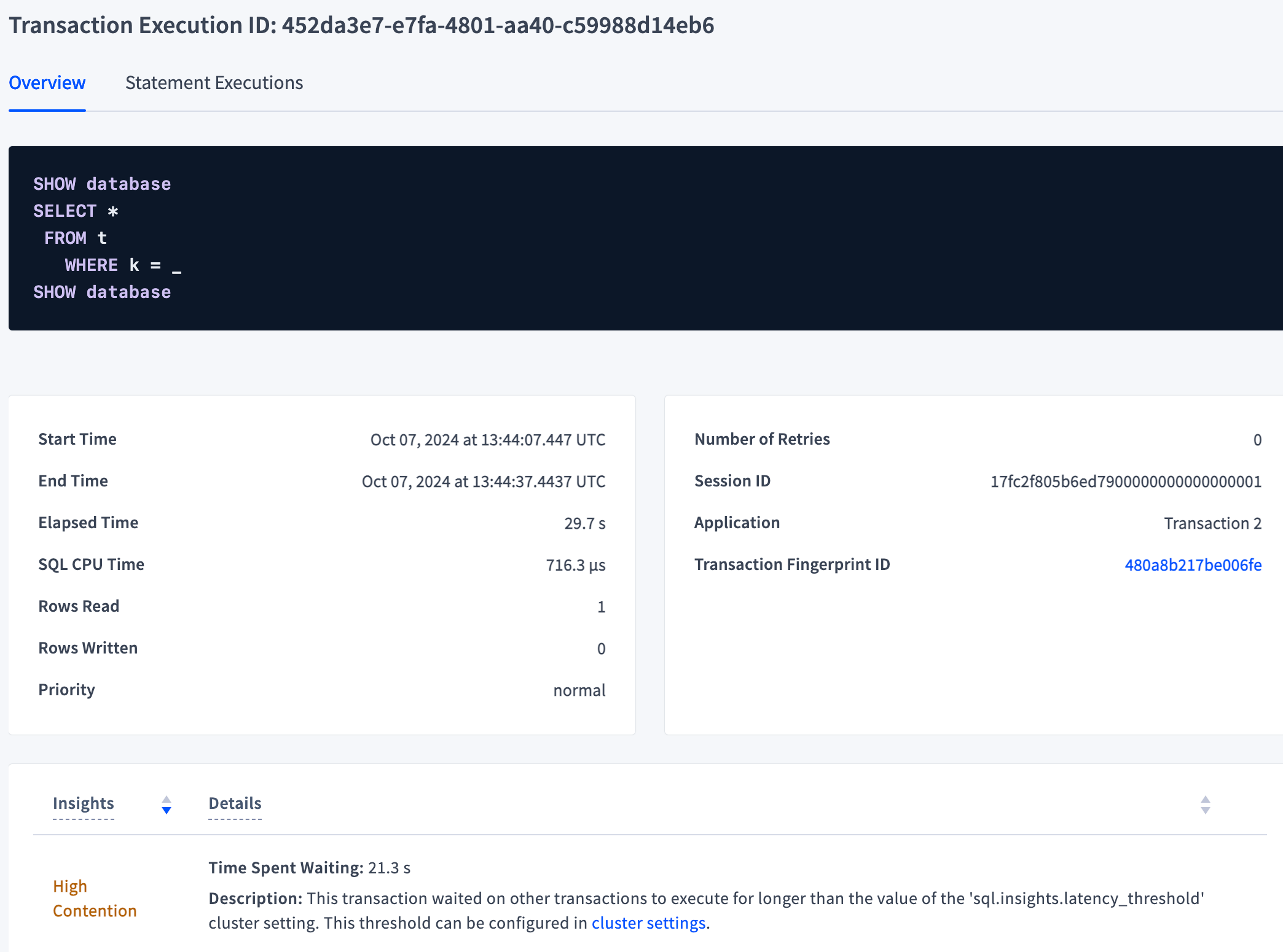 Scroll to the bottom of the Overview tab to the **Transaction with ID ... waited on** section that gives information about the blocking transaction.
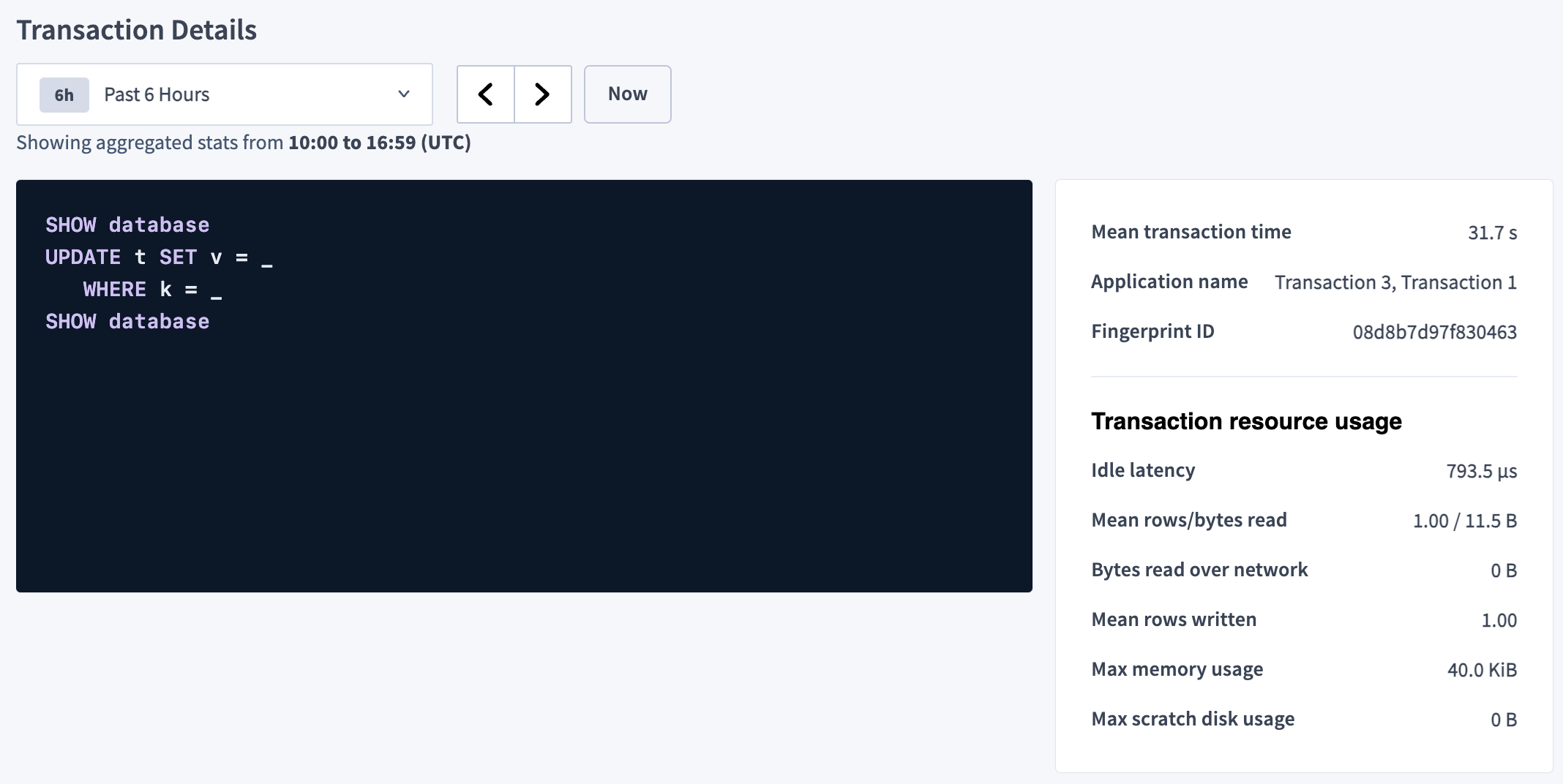
 For more information about the blocking transaction, click the **Transaction Fingerprint ID** to open the **Transaction Details** page.
 ### Additional practice
For [*Transaction 3*](#example-1), take steps similar to *Transaction 2* in order to identify the waiting statement that experienced high contention and the corresponding blocking transaction.
## Step 3. Remediate lock contention
### Background context
Locking conflicts are a natural artifact when business requirements call for concurrent data changes. Realistically, locking conflicts are unavoidable.
Remediation is required when locking conflicts are too numerous, resulting in either a significant increase in response time or decrease in throughput or both. Remediation of locking conflicts is typically about giving up some functionality in exchange for a reduction in locking contention. [Example 2](#example-2) uses two ways of doing this: historical queries and a "fail fast" method. Use these remediations if they fit your application design.
### Historical queries
One way to reduce lock contention is to replace reads with historical reads using `AS OF SYSTEM TIME` wherever possible. Using this, your query returns data as it appeared at a distinct point in the past and will not cause conflicts with other concurrent transactions, which can increase your application's performance. An example of this method is *Transaction 5* in [Example 2](#example-2):
```sql theme={"theme":{"light":"catppuccin-mocha","dark":"catppuccin-mocha"}}
BEGIN AS OF SYSTEM TIME '-30s';
SELECT * FROM t2 WHERE k=4; -- historical read
COMMIT;
```
Consider the following when using historical queries:
* Use historical queries only if the application can use data that is `follower_read_timestamp()` old.
* Historical queries primarily benefit read-only transactions.
* Historical queries operate below closed timestamps and therefore have perfect concurrency characteristics - they never wait on anything and never block anything.
* Historical queries have the best possible performance, since they are served by the nearest replica.
### "Fail fast" method
One way to reduce lock contention with writes is to use a "fail fast" method by using SELECT FOR UPDATE ... NOWAIT before the write. It can reduce or prevent failures late in a transaction's life (e.g. at the `COMMIT` time), by returning an error early in a contention situation if a row cannot be locked immediately. An example of this method is *Transaction 6* in [Example 2](#example-2):
```sql theme={"theme":{"light":"catppuccin-mocha","dark":"catppuccin-mocha"}}
BEGIN;
SELECT * FROM t2 WHERE k=4 FOR UPDATE NOWAIT; -- fail fast write
UPDATE t2 SET v=4034 WHERE k=4;
COMMIT;
```
"Fail fast" could be a reasonable protective measure in the application to handle "hot update key" situations, for example, when an application needs to be able to handle an arbitrarily large surge of updates on the same key.
### Initial Data for Example 2
In any of the SQL shells, create a second table and insert some data:
```sql theme={"theme":{"light":"catppuccin-mocha","dark":"catppuccin-mocha"}}
DROP TABLE IF EXISTS t2;
CREATE TABLE t2 (k INT PRIMARY KEY, v INT);
INSERT INTO t2 VALUES (4,4), (5,5), (6,6);
```
### Example 2
This example will show how to prevent lock contention by using a historical read and a "fail fast" write. *Transaction 4* is a write that does not block either *Transaction 5*, a read, or *Transaction 6*, a write. *Transaction 4* locks key `k=4`. When *Transaction 5* tries to read key `k=4`, it does not experience lock contention because it does not have to wait for the lock on the key to be released. *Transaction 5* uses `AS OF SYSTEM TIME` to do a historical read. When *Transaction 6* executes the `SELECT ... FOR UPDATE NOWAIT` on key `k=4`, an error is returned since the key `k=4` cannot be locked immediately. In other words, *Transaction 6* "fails fast". It does not even attempt to do an `UPDATE` write to key `k=4`, so it does not experience lock contention.
| Transaction 4 (blocking write) | Transaction 5 (historical read) | Transaction 6 (fail fast write) |
| --------------------------------- | ----------------------------------------------- | --------------------------------- |
| `BEGIN;` | | |
| `UPDATE t2 SET v=4014 WHERE k=4;` | `BEGIN AS OF SYSTEM TIME '-30s';` | |
| lock k=4 | `SELECT * FROM t2 WHERE k=4;` | `BEGIN;` |
| not waiting | `SELECT * FROM t2 WHERE k=4 FOR UPDATE NOWAIT;` | |
| k=4,v=4 | error: could not obtain lock | |
| `COMMIT;` | | `UPDATE t2 SET v=4034 WHERE k=4;` |
| success, k=4,v=4014 | | not waiting |
| `COMMIT;` | `COMMIT;` | |
| success | failure | |
| | `SELECT * FROM t2 WHERE k=4;` | |
| | k=4, v=4014 | |
### SQL statements for Example 2
To reproduce Example 2, execute the following SQL statements in the given order in the specified terminal.
**Terminal 1**
```sql theme={"theme":{"light":"catppuccin-mocha","dark":"catppuccin-mocha"}}
SET application_name = 'Transaction 4'; -- to distinguish between transactions
BEGIN;
UPDATE t2 SET v=4014 WHERE k=4; -- lock k=4
```
**Terminal 2**
```sql theme={"theme":{"light":"catppuccin-mocha","dark":"catppuccin-mocha"}}
SET application_name = 'Transaction 5'; -- to distinguish between transactions
BEGIN AS OF SYSTEM TIME '-30s';
SELECT * FROM t2 WHERE k=4; -- historical read
```
*Transaction 5* does a historical read and should output the following:
```
k | v
----+----
4 | 4
(1 row)
```
**Terminal 3**
```sql theme={"theme":{"light":"catppuccin-mocha","dark":"catppuccin-mocha"}}
SET application_name = 'Transaction 6'; -- to distinguish between transactions
BEGIN;
SELECT * FROM t2 WHERE k=4 FOR UPDATE NOWAIT; -- fail fast write
UPDATE t2 SET v=4034 WHERE k=4;
```
The `SELECT ... FOR UPDATE NOWAIT` returns:
```
ERROR: could not obtain lock on row (k)=(4) in t2@t2_pkey
SQLSTATE: 55P03
ERROR: current transaction is aborted, commands ignored until end of transaction block
SQLSTATE: 25P02
```
**Terminal 1**
```sql theme={"theme":{"light":"catppuccin-mocha","dark":"catppuccin-mocha"}}
COMMIT;
```
**Terminal 2**
```sql theme={"theme":{"light":"catppuccin-mocha","dark":"catppuccin-mocha"}}
COMMIT;
```
**Terminal 3**
`COMMIT` *Transaction 6*. Since the `SELECT` statement in Transaction 6 generated an error, `COMMIT` is equivalent to `ROLLBACK`, which aborts the transaction and discards the `UPDATE`. Afterward, verify that the `UPDATE` was discarded.
```sql theme={"theme":{"light":"catppuccin-mocha","dark":"catppuccin-mocha"}}
COMMIT;
SELECT * FROM t2 WHERE k=4;
```
The `SELECT` statement should output the following:
```
k | v
----+-------
4 | 4014
(1 row)
```
## See also
* Transaction contention
* Identify transactions and objects that experienced lock contention using `crdb_internal`
* **Insights** page
* `AS OF SYSTEM TIME`
* `SELECT FOR UPDATE ... NOWAIT`
### Additional practice
For [*Transaction 3*](#example-1), take steps similar to *Transaction 2* in order to identify the waiting statement that experienced high contention and the corresponding blocking transaction.
## Step 3. Remediate lock contention
### Background context
Locking conflicts are a natural artifact when business requirements call for concurrent data changes. Realistically, locking conflicts are unavoidable.
Remediation is required when locking conflicts are too numerous, resulting in either a significant increase in response time or decrease in throughput or both. Remediation of locking conflicts is typically about giving up some functionality in exchange for a reduction in locking contention. [Example 2](#example-2) uses two ways of doing this: historical queries and a "fail fast" method. Use these remediations if they fit your application design.
### Historical queries
One way to reduce lock contention is to replace reads with historical reads using `AS OF SYSTEM TIME` wherever possible. Using this, your query returns data as it appeared at a distinct point in the past and will not cause conflicts with other concurrent transactions, which can increase your application's performance. An example of this method is *Transaction 5* in [Example 2](#example-2):
```sql theme={"theme":{"light":"catppuccin-mocha","dark":"catppuccin-mocha"}}
BEGIN AS OF SYSTEM TIME '-30s';
SELECT * FROM t2 WHERE k=4; -- historical read
COMMIT;
```
Consider the following when using historical queries:
* Use historical queries only if the application can use data that is `follower_read_timestamp()` old.
* Historical queries primarily benefit read-only transactions.
* Historical queries operate below closed timestamps and therefore have perfect concurrency characteristics - they never wait on anything and never block anything.
* Historical queries have the best possible performance, since they are served by the nearest replica.
### "Fail fast" method
One way to reduce lock contention with writes is to use a "fail fast" method by using SELECT FOR UPDATE ... NOWAIT before the write. It can reduce or prevent failures late in a transaction's life (e.g. at the `COMMIT` time), by returning an error early in a contention situation if a row cannot be locked immediately. An example of this method is *Transaction 6* in [Example 2](#example-2):
```sql theme={"theme":{"light":"catppuccin-mocha","dark":"catppuccin-mocha"}}
BEGIN;
SELECT * FROM t2 WHERE k=4 FOR UPDATE NOWAIT; -- fail fast write
UPDATE t2 SET v=4034 WHERE k=4;
COMMIT;
```
"Fail fast" could be a reasonable protective measure in the application to handle "hot update key" situations, for example, when an application needs to be able to handle an arbitrarily large surge of updates on the same key.
### Initial Data for Example 2
In any of the SQL shells, create a second table and insert some data:
```sql theme={"theme":{"light":"catppuccin-mocha","dark":"catppuccin-mocha"}}
DROP TABLE IF EXISTS t2;
CREATE TABLE t2 (k INT PRIMARY KEY, v INT);
INSERT INTO t2 VALUES (4,4), (5,5), (6,6);
```
### Example 2
This example will show how to prevent lock contention by using a historical read and a "fail fast" write. *Transaction 4* is a write that does not block either *Transaction 5*, a read, or *Transaction 6*, a write. *Transaction 4* locks key `k=4`. When *Transaction 5* tries to read key `k=4`, it does not experience lock contention because it does not have to wait for the lock on the key to be released. *Transaction 5* uses `AS OF SYSTEM TIME` to do a historical read. When *Transaction 6* executes the `SELECT ... FOR UPDATE NOWAIT` on key `k=4`, an error is returned since the key `k=4` cannot be locked immediately. In other words, *Transaction 6* "fails fast". It does not even attempt to do an `UPDATE` write to key `k=4`, so it does not experience lock contention.
| Transaction 4 (blocking write) | Transaction 5 (historical read) | Transaction 6 (fail fast write) |
| --------------------------------- | ----------------------------------------------- | --------------------------------- |
| `BEGIN;` | | |
| `UPDATE t2 SET v=4014 WHERE k=4;` | `BEGIN AS OF SYSTEM TIME '-30s';` | |
| lock k=4 | `SELECT * FROM t2 WHERE k=4;` | `BEGIN;` |
| not waiting | `SELECT * FROM t2 WHERE k=4 FOR UPDATE NOWAIT;` | |
| k=4,v=4 | error: could not obtain lock | |
| `COMMIT;` | | `UPDATE t2 SET v=4034 WHERE k=4;` |
| success, k=4,v=4014 | | not waiting |
| `COMMIT;` | `COMMIT;` | |
| success | failure | |
| | `SELECT * FROM t2 WHERE k=4;` | |
| | k=4, v=4014 | |
### SQL statements for Example 2
To reproduce Example 2, execute the following SQL statements in the given order in the specified terminal.
**Terminal 1**
```sql theme={"theme":{"light":"catppuccin-mocha","dark":"catppuccin-mocha"}}
SET application_name = 'Transaction 4'; -- to distinguish between transactions
BEGIN;
UPDATE t2 SET v=4014 WHERE k=4; -- lock k=4
```
**Terminal 2**
```sql theme={"theme":{"light":"catppuccin-mocha","dark":"catppuccin-mocha"}}
SET application_name = 'Transaction 5'; -- to distinguish between transactions
BEGIN AS OF SYSTEM TIME '-30s';
SELECT * FROM t2 WHERE k=4; -- historical read
```
*Transaction 5* does a historical read and should output the following:
```
k | v
----+----
4 | 4
(1 row)
```
**Terminal 3**
```sql theme={"theme":{"light":"catppuccin-mocha","dark":"catppuccin-mocha"}}
SET application_name = 'Transaction 6'; -- to distinguish between transactions
BEGIN;
SELECT * FROM t2 WHERE k=4 FOR UPDATE NOWAIT; -- fail fast write
UPDATE t2 SET v=4034 WHERE k=4;
```
The `SELECT ... FOR UPDATE NOWAIT` returns:
```
ERROR: could not obtain lock on row (k)=(4) in t2@t2_pkey
SQLSTATE: 55P03
ERROR: current transaction is aborted, commands ignored until end of transaction block
SQLSTATE: 25P02
```
**Terminal 1**
```sql theme={"theme":{"light":"catppuccin-mocha","dark":"catppuccin-mocha"}}
COMMIT;
```
**Terminal 2**
```sql theme={"theme":{"light":"catppuccin-mocha","dark":"catppuccin-mocha"}}
COMMIT;
```
**Terminal 3**
`COMMIT` *Transaction 6*. Since the `SELECT` statement in Transaction 6 generated an error, `COMMIT` is equivalent to `ROLLBACK`, which aborts the transaction and discards the `UPDATE`. Afterward, verify that the `UPDATE` was discarded.
```sql theme={"theme":{"light":"catppuccin-mocha","dark":"catppuccin-mocha"}}
COMMIT;
SELECT * FROM t2 WHERE k=4;
```
The `SELECT` statement should output the following:
```
k | v
----+-------
4 | 4014
(1 row)
```
## See also
* Transaction contention
* Identify transactions and objects that experienced lock contention using `crdb_internal`
* **Insights** page
* `AS OF SYSTEM TIME`
* `SELECT FOR UPDATE ... NOWAIT`